Endurance Financial
Endurance Financial

Downloading your HMRC tax documents

A step-by-step guide to getting your Tax Year Overviews and Tax Calculations — the documents we need to support your mortgage application.

Last updated June 2026

You will usually need both documents for the same tax years (typically the last 2–3 years): a Tax Year Overview and a Tax Calculation for each year. The two sections below show you exactly where to find each.

Getting started — log in

You only need to do this once per session.
1

Go to gov.uk/log-in-register-hmrc-online-services and log in with your Government Gateway details.

2

Click any of the "Self Assessment" links to get to the right area.
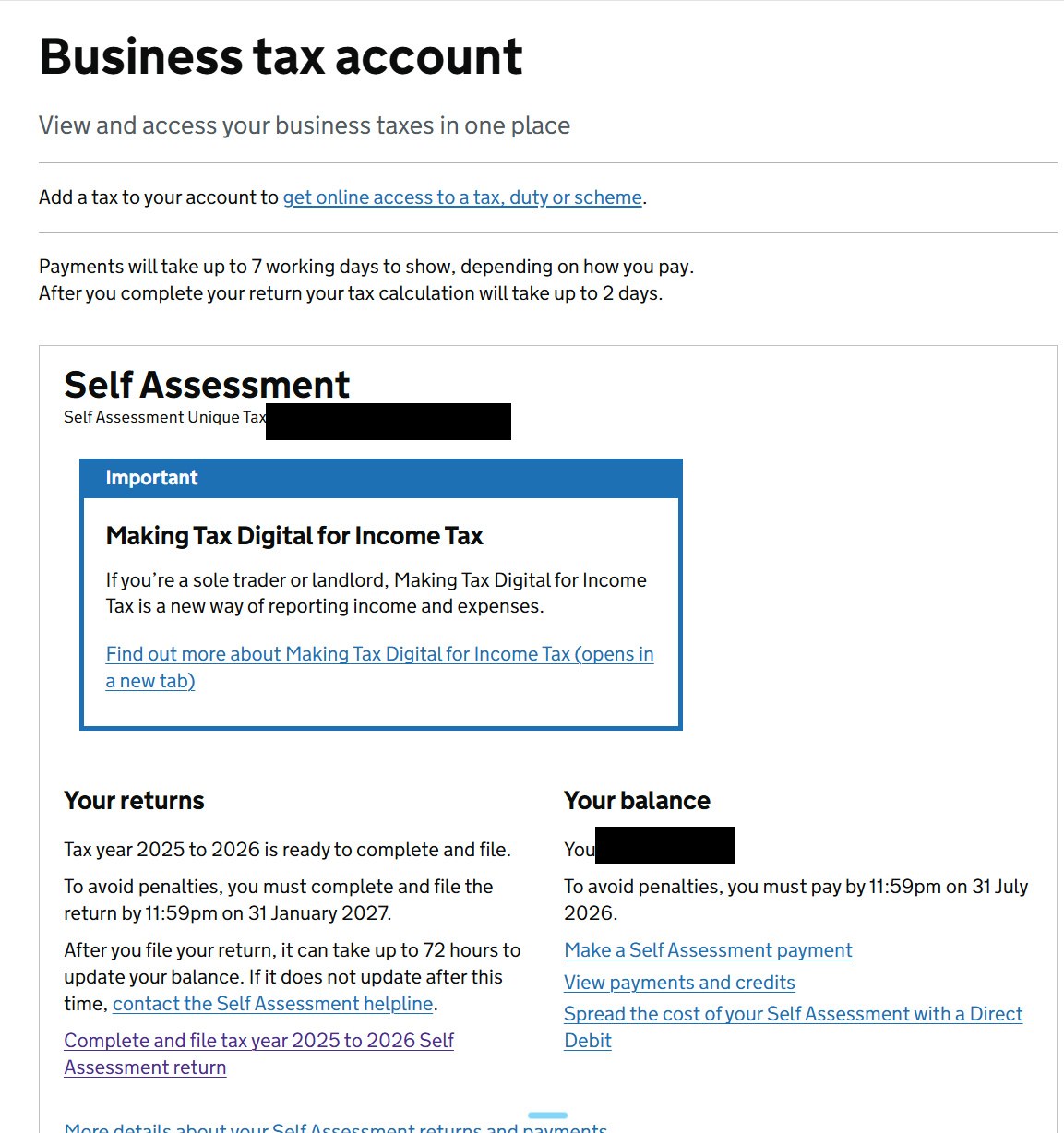
Business tax account showing the Self Assessment section
Your Business tax account — the Self Assessment section.

Part 1 — Tax Year Overviews (TYOs)

The simpler of the two to find.
1

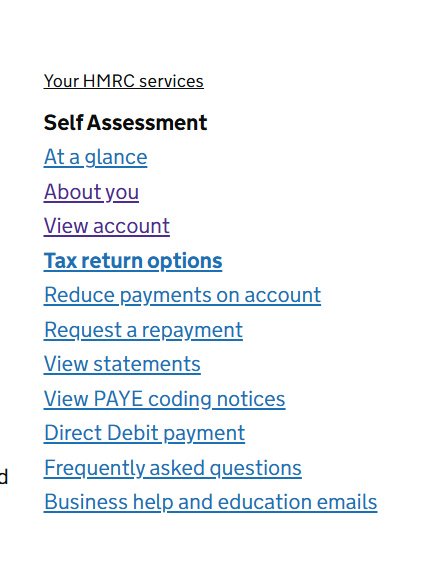
In the menu, find "View account".

Self Assessment menu showing View account and Tax return options
The Self Assessment menu.
2

Click "View account", then the sub-menu "Tax years".
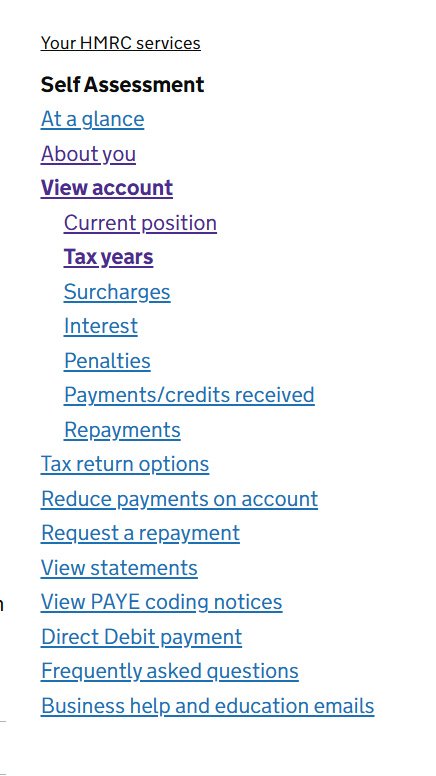
View account expanded showing the Tax years sub-menu
"View account" ▸ "Tax years".
3

This is your Tax Year Overview. Change the year in the drop-down and press Go — both steps matter.
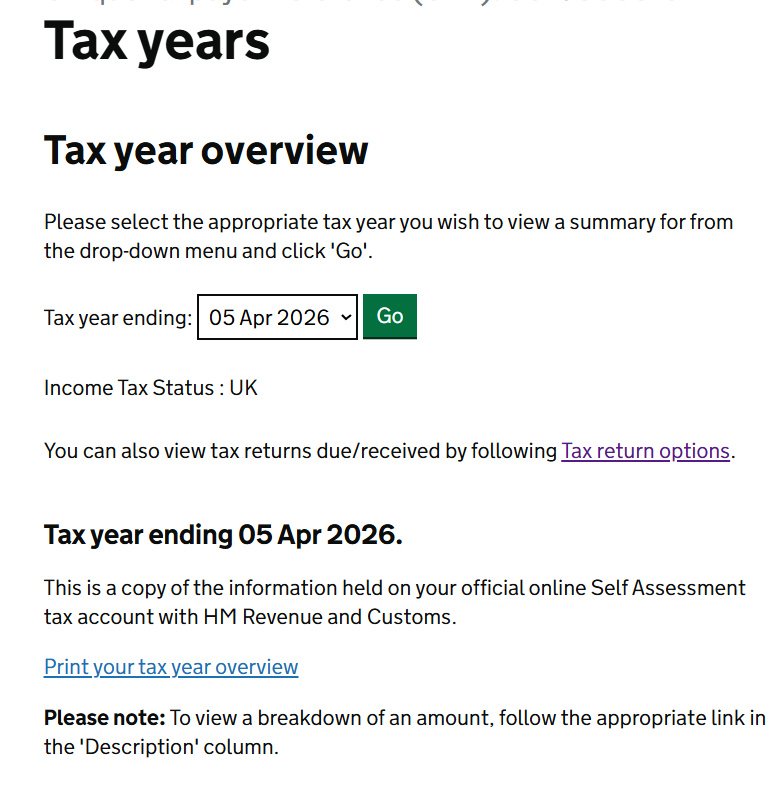
Tax year overview page with the year drop-down and Go button
Choose the tax year, then press "Go".
4

Click "Print your tax year overview" and save it (print to PDF is ideal).

Repeat for each year we've asked for — remember to change the year and press "Go" each time.

Part 2 — Tax Calculations

A little harder to find — follow these carefully.
1

In the menu, choose "Tax return options".
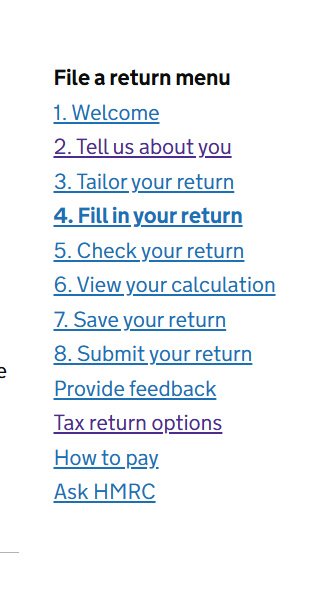
Menu showing Tax return options
Look for "Tax return options".
2

Change the date and press Go for a year that has been submitted. (It sometimes defaults to the latest unsubmitted year.) Then press "View return".
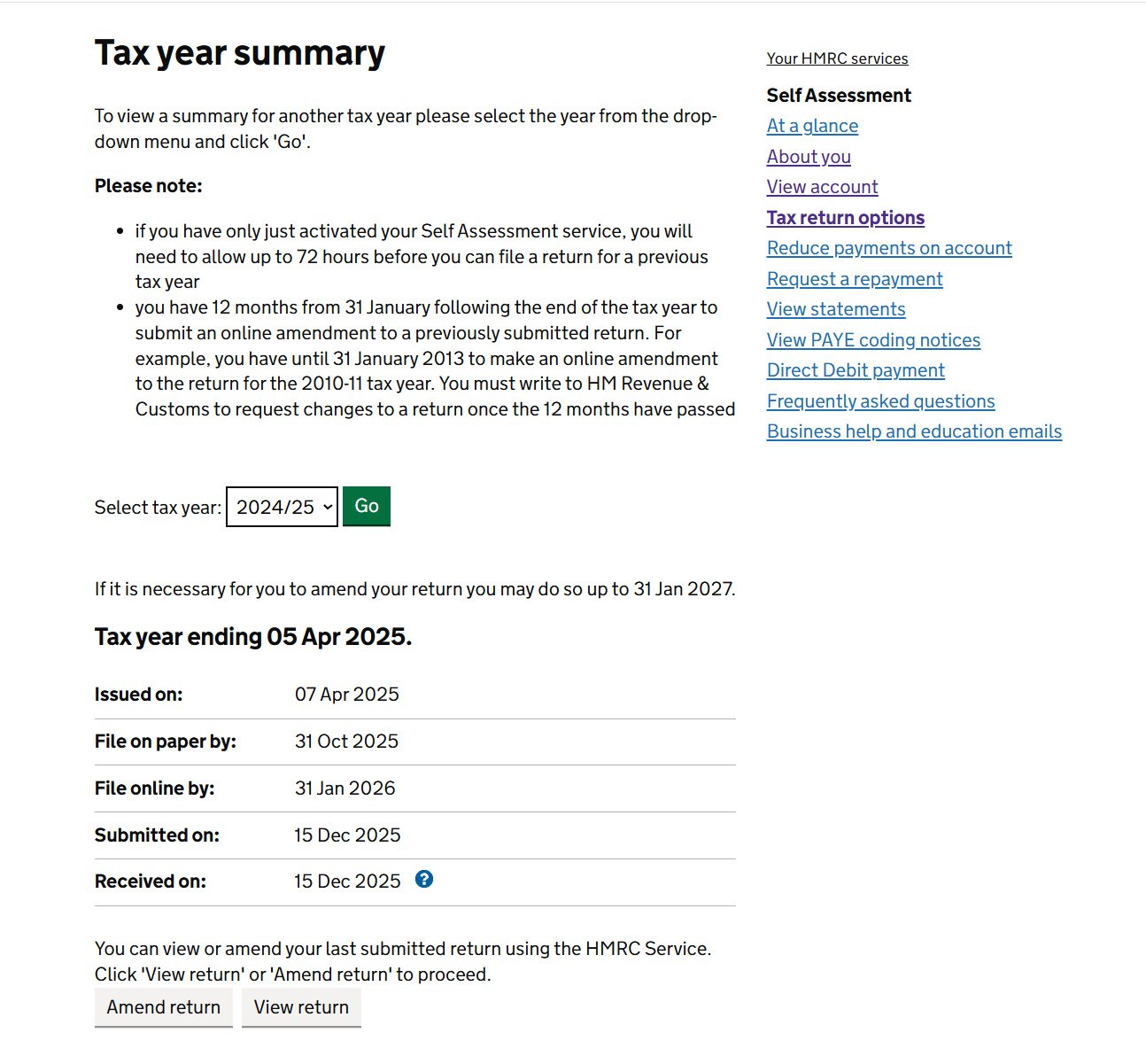
Tax year summary with year selector, Go, and View return button
Select a submitted year, press "Go", then "View return".
3

Click "View your calculation for your latest submitted return".

4

Then "View and print your full calculation".
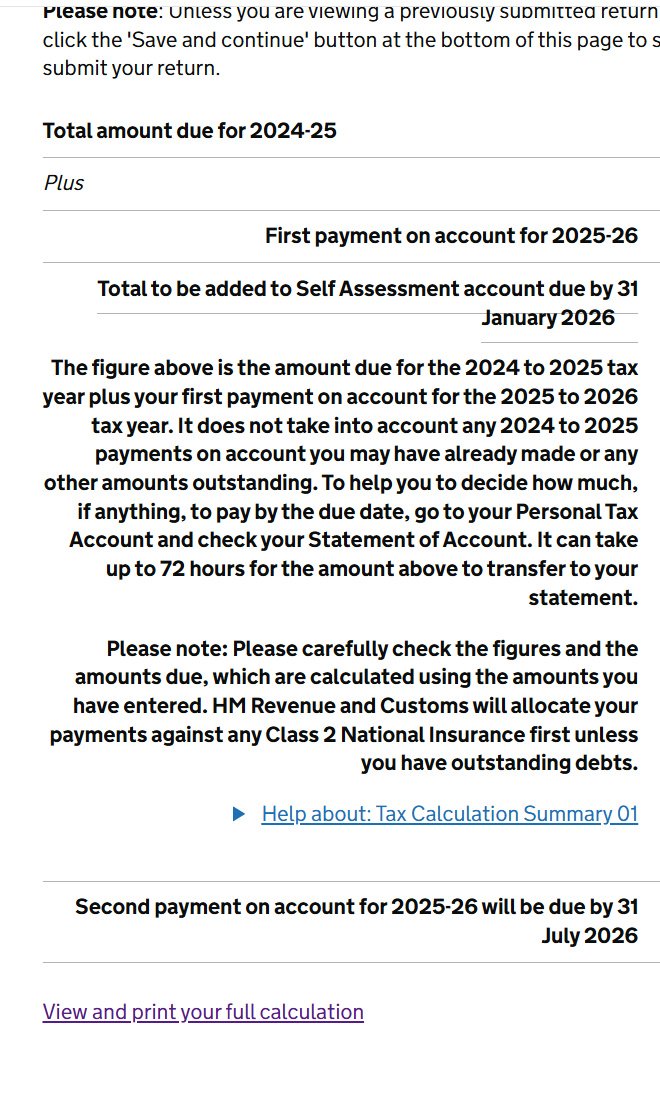
Page with the View and print your full calculation link
The "View and print your full calculation" link.
5

Finally, use the button at the bottom: "Print your full calculation" and save it.
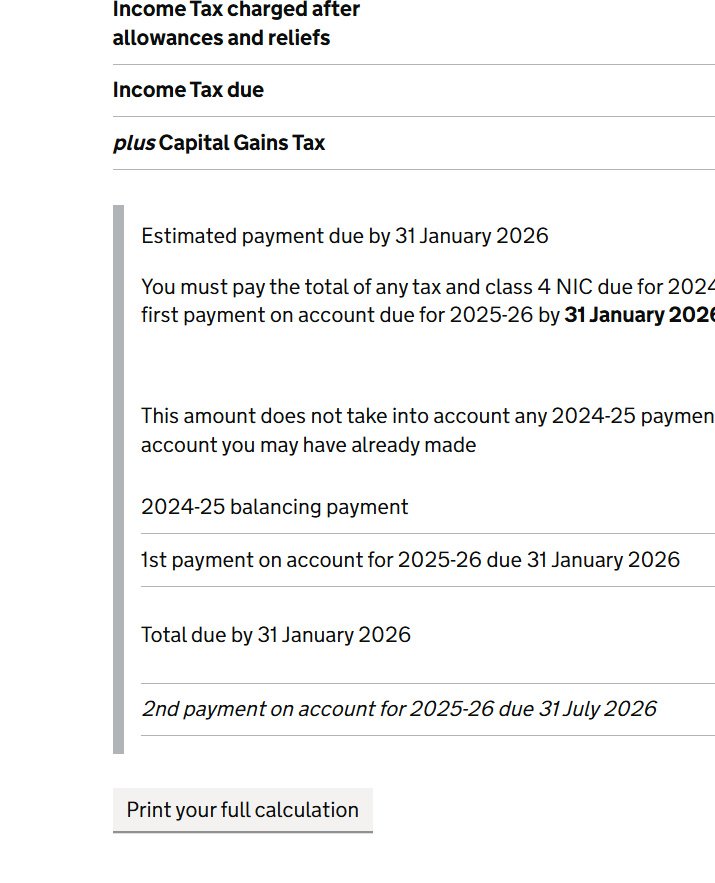
Calculation page with the Print your full calculation button
The "Print your full calculation" button.
Repeat for each year we've asked for.

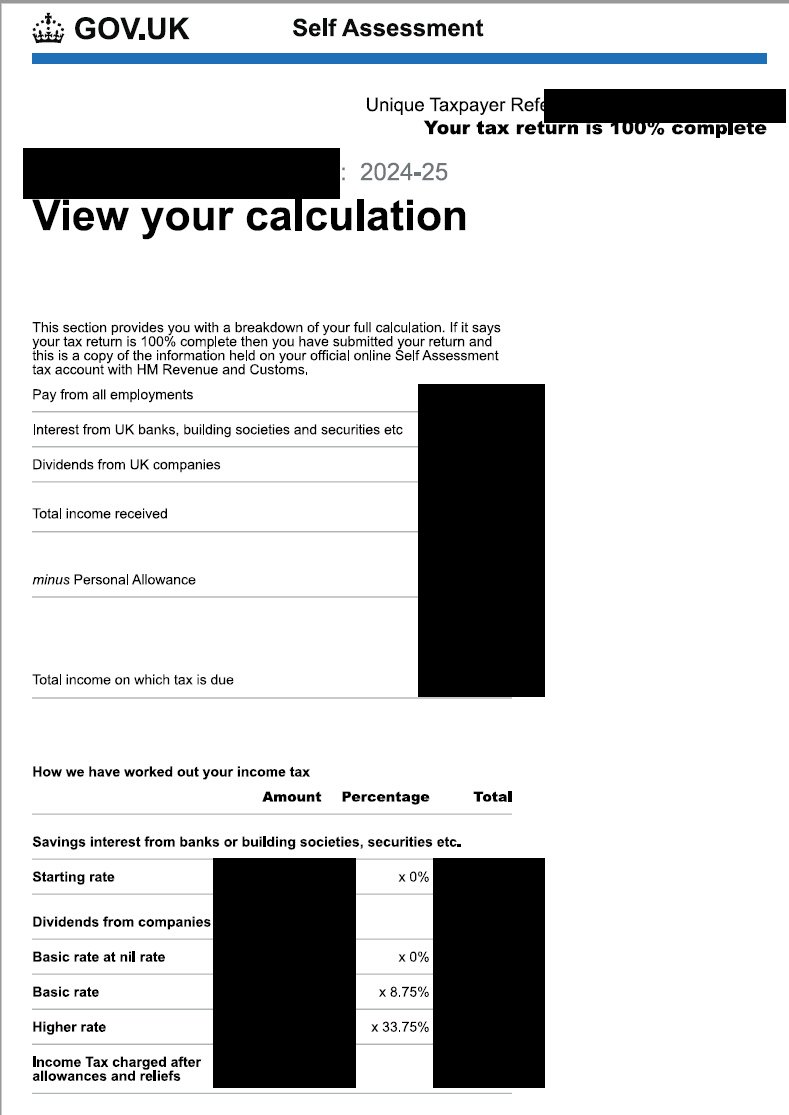
What a Tax Calculation looks like

So you know you've got the right document.
This is an example only — the name, reference and all figures have been blanked out.
Example HMRC tax calculation with personal details redacted
Example "View your calculation" / full tax calculation.

Stuck on any step? Call us on 0114 249 6990 and we'll talk you through it.